Here you'll find several tips, tweaks and tutorials on matters I find interesting (and possibly you will too) regarding the web and other techy stuff. Look around and you'll surely find something that you find useful.

Sunday, April 18, 2010

13 Absolutely Essential Free Windows Apps!

So you've just made a fresh Windows installation and now you've got to install all of your utilities on the system. Well, with the huge variety of apps available on the internet these days it's difficult to make a well calculated choice. Then there also is the issue about free/trial version apps and large/bloated softwares that roam the internet. I'll try and help you out here by mentioning the apps that I install on any system that I work on as soon as I make any fresh Windows installation.
The best part about these apps is that they're all free and most of them are absolutely light-weight.

The utility of these apps range from security and system-maintenance to apps that enable you to work faster and smarter on your PC, enabling you to get the most juice out of your Windows box.

So let's go!

1. Ccleaner
Ccleaner is one software I absolutely always install right after I've installed Windows on any machine. It's a system-maintenance software and it provides you with options like registry-cleaning and it also does a neat job of clearing your internet history and other redundant files thus saving space on your disk and optimizing your PC.
It comes along with a start-up manager, an un-installation tool and a host of other neat features. Absolutely essential!

2. Chrome/Firefox
www.urbandictionary.com defines Internet Explorer as "An efficient tool which lets you browse to www.mozilla.com and download Firefox"! IE has always had plenty of pitfalls and I've been a Firefox loyalist most of my life until Chrome came along. However, between the two, it may just be a matter of your choice. Both these free browsers offer excellent features like tabbed browsing, better security, private browsing, extensions and gazillions of other goodies. Do yourself a favor and dump IE for good.
PS: Internet Explorer 8 has been a major improvement on it's earlier versions. But to hell with it! I'm a Google fanboy, so Chrome ftw!!

3. VLC
VLC, your one stop shop for all your video playback requirements. No hassles with downloading codecs or different players for different file formats. It's free. It's light-weight. It's an absolute must on any PC.

4. Avira
Avira/AVG/Avast. Either of these free anti viruses should do good. However, I've been using Avira for the past couple of years and have never had any major virus problems on my PC at all.
All you've got to do is keep updating your virus definitions, run regular scans and you can be rest assured of a virus-free PC.

5. Power ISO
For all of my burning/virtual CD requirements, I use Power ISO. It provides with easy mounting of images to multiple virtual drives and also serves as an efficient CD burner for all your regular needs. You'll find no need for any additional bloat-ware in Nero or any other CD burning tool.

6. SUPER (media converter)
Truly living up to it's name, this free media converter converts absolutely any file format to any desired format under the sun in three easy steps! Convert images, audio files and even full length movie videos to any format you need using this superb bit of software.


7. Foxit PDF reader
I'm sure you must've been frustrated at times waiting for your default PDF reader, Adobe Acrobat, to fire up whenever you tried opening a pdf file. Well here's Foxit PDF reader to your rescue! This free software is absolutely light-weight and comes bundled with a wide array of essential features for all your ebook reading requirements.
A special mention to Sumatra PDF reader that comes a close second in this category which is another great adobe-acrobat-alternative.


8. WinRAR
Zip, Rar, 7z, .part, .cab. Throw anything at it and this neat software will extract the files in a jiffy. It also provides for efficient archiving allowing you to split large files into volumes or even password protected archives.


9. Notepad++
Notepad++ is an excellent alternative to the featureless default Notepad that comes with Windows. It is freeware, light and comes bundled with tons of features like macro recording, code expansion/highlighting, tabbed windows etc. With Notepad++ installed on your system, you'll never find the need for any additional code-editor tools like Edit++ or Komodo.


10. Defraggler
Defraggler is another system maintenance tool from the makers of Ccleaner. Basically, it defrags your HDDs just like Windows' Disk Defragmenter does. However it provides a way simpler UI and allows you to analyze each disk to check for the amount of degragmentation etc.
Run this app once every month or so and your machine should be running smooth as always.


11. Everything
"Everything" is an administrative tool that locates files and folders by filename instantly for Windows. Unlike Windows search "Everything" initially displays every file and folder on your computer (hence the name "Everything").
You type in a search filter to limit what files and folders are displayed.


12. Pidgin
Pidgin is a free chat program that allows you to login to Yahoo, AOL, Facebook, Gtalk and several other chat networks simultaneously. You no longer will have to download Yahoo Messenger, Gtalk or any other separate client for each of your chatting accounts. All your contacts appear in the single Pidgin window and you can chat with all your contacts via different accounts simultaneously.
PS: Meebo is an online web application that does just the same and can be using right inside your browser without even downloading or installing any application at all!

Other honorary mentions.
Following are some more applications that I usually install on my comp which I think are worth a mention here if not in the top-13 list.

Panda USB Vaccine
It's a free anti-malware tool that prevents computers from being infected by autorun.inf based viruses. It automatically replaces the autorun file on your pen-drive with a dummy one so as to avoid the infection onto your PC. And it does this as soon as any disk is attached to your USB ports! Very useful!

Utorrent
If you download stuff from the internet using torrents, there's absolutely no reason why you shouldn't be using utorrent. Enough said.

Spybot Search & Destroy
Sypbot S&D is an anti-spyware/malware tool that does an excellent job of searching and destroying any spyware or malware on your computer.

iTunes/WMP12
I know there are several softwares out there on the net which are way more effective at managing your music than iTunes is. But then, iTunes syncs without any hassles with my iPods and also organizes the music on my desktop pretty easily.
Besides, I've recently installed Windows 7 on my computer and the Windows Media Player 12 that comes bundled with it is simply awesome. A huge makeover from it's previous versions and it integrates with 7 really very well.

Thursday, November 26, 2009

Add network activity indicator to Windows 7/Vista


The new network activity icon in the system tray for Windows 7/Vista only shows the list of network connections and doesn't work like how it used to in XP.
The 2 tiny monitors, constantly blinking would let us know when our router had crashed or wasn't responding. Also, it would blink whenever there was any network activity on your machine thereby letting you know of the same.
I badly missed this feature in Windows 7 since ever so often some update program would launch itself in the background and start downloading updates without my notice. Atleast if I had those blinking monitors I'd know about the activity.

Anyway, so if you're missing the network activity indicator as much as I do (or even if you don't) try out this ultra-tiny 57kb app!
Simply download from here. Unzip it to any folder and run the NetworkIndicator.exe file.
You should have the 2 blinky computers on your system tray right away!
To have the app load up at startup each time, simply right click the tray-icon, click Settings, and check the box that says 'Load on startup' and you're golden! :)

via DownloadSquad

Wednesday, November 25, 2009

Watch TV (especially the Champions League matches that you miss) on your computer using Sopcast!

So I wanted to watch Arsenal's Champion's League match against Standard Liege yesterday however Zee Sports and Ten Sports (who usually telecast the CL matches where I live) were telecasting other matches and the Arsenal match was scheduled for a late-telecast.
And late-telecasts aren't fun, I wanted it live! And live I watched it, on my computer using live-streaming of the match via SopCast.

If you're a football fan, you may have watched matches online inside your browser itself using links like www.justin.tv/ etc. However, the problem with these links is that as the number of viewers increase, the quality of the live-stream-video decreases, i.e. it will start stuttering and lagging. Eventually the link may shut down all together due to an overload of viewers on the same link!

P2PTV (peer-to-peer-television) however allows several users to watch the same link without any such problem! Infact, with an increase in the number of users, usually the live-streaming gets smoother!
And to use P2PTV you could use a software like SopCast!

Sopcast is P2PTV! It works very much like how torrents do. While streaming a channel, you download a bit of the video and at the same time you upload it so that others can stream the same on their computer and thus the availability of that live-stream is increased!

Now that you know what SopCast and P2PTV is, lets get to HOW do we use it to enjoy Champions League football!

First, download SopCast from here and unzip the contents to a directory of your choice.
Run the SopCast setup (.exe file) and install it to your computer.


Now fire up SopCast and check the radio button that says: Login as anonymous.
Also check the checkbox 'Autologin on this computer' so that you don't have to perform this step every time.

Now click the 'Live Channels' tab and you can view a list of channels that are currently available for viewing categorized according to 'Sports', 'News', 'Education' etc.


The CL match that you wish to watch may not always be available under the Sports section, so you may have to search for your channel on the net first.

Head over to Live-Football, a site dedicated to posting live-stream links to all football matches around the world!
Click the 'Champions link' to head over to the page listing all of the upcoming CL fixtures.
Now select the match you wish to watch and click the link.
And there you will see a list of channels that are available to be viewed on SopCast! (Note that some of the channels may not work only until kickoff)

Just click the live-stream link that has 'SopCast' written next to it (which means that the particular link is a SopCast channel).
SopCast will automatically start and begin playing the given channel.

Another method is, you acquire the SopCast channel no. and simply enter it into the Address field in Sopcast. For e.g.: "Channel - 30931"


You're done! You should have your match streaming for you within seconds! :)

In case you've got any queries regarding this, leave a comment and I'll get back to you asap!


NOTE: If you are on a limited broadband connection, watching live-streams can account for a lot of bandwidth so take care.
Also, if you are on a slow dialup connection, the video may appear laggy and slow. This is not a problem with SopCast or the channel, it's your internet connection.

Thursday, November 19, 2009

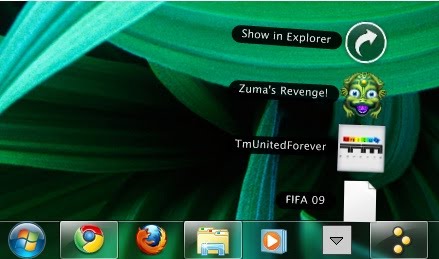
Standalone Stack lets you pin stacks to your Windows Taskbar!

If you use RocketDock you probably also use the Stack-docklet for saving docklet-real-estate. And if you don't use the docklet already, maybe you should! Check it out now!


With the awesome Windows 7 toolbar, you may have already gotten rid of your Dock, however you must be missing the stack-docklet that you had earlier.
Well with 'Standalone Stack' from Chris'n'Soft you can have stacks on your taskbar!


Just download Standalone Stack from here. Unzip the files to C:/standalonestack/ and run the standalonestack2.exe file to fire it up!

Now in the left side bar, select 'New Stack'. On the right, enter a name for your stack and enter a Path name'. Which ever folder you point to here, the contents of that folder would appear in your stack. For example, you could create a folder of all your game shortcuts and then have your stack point to that folder. Consequently you get a stack pointing to all your games on your PC just as I've done in the screenshot above.

Now hit the 'Create Stack' button and then the 'Create shortcut on desktop' button.
You will now get a stack icon on your desktop that does just the same task. If you wish to, you may now pin that shortcut to your taskbar and then delete the shortcut.
And you're done! You've got a stack docklet on your task bar now!

Standalone stack works on XP/Vista/7.

Tuesday, November 17, 2009

Automatic Drive Icons on your Desktop

If you've used ubuntu, you must have noticed that as soon as you enter a flash drive or disc into the machine, you instantly get a helpful little icon on your desktop that points to your newly plugged in drive.


You can have the same functionality on your Windows machines using Desktop Media.
On downloading this tiny app (350kb) just unzip the contents and run the application.
You'll get a tray application and on double clicking it you're presented with a menu with a wide variety of options regarding how you want the app to behave.


You can download Desktop Media from here.

Saturday, October 3, 2009

Search your desktop real-time using Everything

Of late I've been using Everything a lot to search my desktop for files!


It's a really cool software that indexes all your hard disks (as long as they're in NTFS) and lets you search files instantly.

Instantly meaning; hardly you press a key, it will list all files on your system that contain that keyword. And as you key in more characters, all the relevant search results would get filtered.
That is, you get to search real time!

The software is just 334 kb and it beats the default Windows Search hands down!
A must have on your XP system methinks!

Friday, August 14, 2009

How to use 2 (or more) LAN settings on the same LAN card.

I recently got myself an MTNL Triband connection along with which I also had a local broadband connection.
Now I had just one LAN card and consequently just the one "Local Area Connection" in my network connections.
Each of the 2 had separate IPs, masks and gateways and I had to find a quicker way to switch between the 2 LAN-TCP/IP settings. Manually editing the settings each time is obviously too troublesome.
This little trick is pretty useful also if you're constantly swapping between several connections (maybe home and office) on your laptop.


Google to the rescue it was. Here's a neat trick that uses "netsh", a command-line command to change the tcp/ip settings.
Here's how you do it,

Create a text file and copy the following lines of code into the file.

netsh interface ip set address name="Local Area Connection" source=static addr=IP_ADDRESS mask=SUBNET_MASK
netsh interface ip set address name="Local Area Connection" gateway=DEFAULT_FATEWAY gwmetric=0
netsh interface ip set dns name="Local Area Connection" source=static addr=PREFERRED_DNS
netsh interface ip add dns name="Local Area Connection" addr=ALTERNATE_DNS index=2
pause


Replace the yellow text with the respective details of either one of your connections.
Make sure the name of your LAN connection is same as the one specified in the text file (as in this case it is 'Local Area Connection').

(Make sure that file extensions are not hidden and then) Change the extension from .txt to .bat so that it is saved as a batch file.

Do the same thing once more and this time enter the details of your second connection.

You can name the files whatever you want. For e.g., I named one as MTNL connection.bat and the other as localnet.bat

When you want to swap to another connection, just run the relevant .bat file and you're good to go. If you want to revert to the previous settings, run the other .bat file.

In case you come across any difficulties post away and I'll try my best to help you asap!

Thursday, August 6, 2009

Download an offline installer of Google Chrome in a jiffy!

Google Chrome is awesome. Period.
However, if you're on a very slow or do not have an internet connection, the default Chrome installer (which is an online installer) is a pain.
I'd rather have a large download file for a completely offline install rather than a small file with an online one.

And you can get an offline installer for Chrome really easily. Here's how:

Head over to http://filehippo.com/download_google_chrome/ to get to know the latest version of Chrome available. Or you can just google that.
As of today, the Beta version is currently at
3.0.196.2

Now we've only got to take note of the last two parts of that version number. In this case: "196.2".

And then simply enter the following address into your browser and replace the xxx.xx with the version no.
http://dl.google.com/chrome/install/xxx.xx/chrome_installer.exe

In my case, it would be http://dl.google.com/chrome/install/196.2/chrome_installer.exe

Go to the link and you should get a prompt box telling you to save the file. It would be around 10mb. Just save the file and you're done.

The next time you've got to install Chrome, you can do it without an internet connection. Just fire up the newly downloaded installer and you're golden!

Wednesday, April 22, 2009

Start copying using TeraCopy!

TeraCopy is a tiny freeware program that is an alternative for the default Windows XP (or Vista) file-copying tool. It copies files at the maximum possible speed, providing the 'current status' of the copying (which includes the estimated time of completion, %left, no. of files completed in batch copying etc..) and it also has an error recoverability feature which is a terribly missed feature in the default copying application.

In case of a file-copy error, it will try several times again to copy the file. And incase a copy still isn't possible it will not terminate the entire copying process (unlike the default copying application in Windows which abruptly stops the copying), but it will just skip the faulty file and copy the rest of the files successfully.
Teracopy also displays the speeds at which files are copied and also offers a unique feature of pausing and resuming a file-copying process.

A portable version of Teracopy is also available incase you're running a slow system.

So, XP and Vista users, stop just copying and start teracopying now!

Saturday, April 11, 2009

Fixing iKernel.exe/Installshield error

I recently ran into this iKernel.exe error while trying to install Dreamweaver on my lappy.
It read "The Installshield engine could not be launched. %1 ikernel.exe is not a valid Win32 application"
The same error popped up while trying to install another application. So I decided to look it up and I managed to find a simple solution for the same and this solution works for most of the other iKernel.exe or Installshield errors as well!

Simply head over to C:/Program Files/Common Files/Installshield and delete the 'Engine' folder. Then empty it from recycle bin!
Try the installation again and you should be golden! :)

Saturday, April 4, 2009

Protect your Pen-drives from viruses by disabling autorun!

Well most of the times that your pen drive get's infected is usually due to plugging in a previously infected pendrive to a PC and then plugging yours to the same.
If you've got your "Folder Options" missing, "Regedit" missing or your usb devices not opening in Windows Explorer, it's most usually because you're infected with a virus.
Well, an anti-virus scan and a spyware removal tool would help you get rid of the virus, but then you've got to be careful not to get infected again!

Most viruses spread by utilizing the autorun.inf file that autmatically runs every time you plug-in your pen drive to your computer. They configure the autorun file to launch the virus-executables that may be bundled along with the autroun.inf file on your pendrive. And thats how they spread from machine to machine, cripplings systems along the way.

So how I'll try to help you here is by disabling the autorun feature which would minimize the chances infection considerably incase an infected pendrive is plugged into your comp.
Also, we'll see how to prevent viruses from infecting pen drives that are plugged into your computer.

1. Disabling the Autorun feature.
Simply fire up your registry editor. (Start>Run>regedit)
Navigate to HKEY_CURRENT_USER\Software\Microsoft\Windows
\CurrentVersion\Policies\Explorer
Now double click the value ""NoDriveTypeAutoRun" and set the Hex value to "ff" or the Decimal value to "255".
Hit F5 (to refresh your registry editor) and you're done.
Autorun.inf will no longer be executed automatically.

2. Prevent Autorun.inf files being writted to your pen drives.
All you've got to do here is create a folder named "Autorun.inf" without the quotes!

(Headover to folder options and unhide file extensions incase it isn't already.)
These files should prevent malicious autorun files from infecting your pendrive.

Thats it! :)
These 2 steps should minimize (if not immunize) your pendrives from viruses to quite an extent!
Incase you still need some more help on this topic, ask away!

Sunday, March 8, 2009

Get rid of the shortcut-arrow from Shortcut Icons.

Well, this tip is mainly for the desktop conscious, the ones who like to flaunt their sleek looking desktops with the magnificent wallpapers, smooth looking themes and arty icons.
But the little shortcut-arrow that shows up on shortcut icons always seem to blemish the beauty of your icons.
So this little tweak here helps you get rid off these ugly marks.
All you've got to do is edit a single registry value.
Here's how its done...


Head over the the Registry Editor (Start>Run>"regedit">OK)
Navigate to "HKEY_CLASSES_ROOT\lnkfile".
Backup the key just incase you would want the shortcut-arrows back in the future. To do this, right click on "lnkfile">Export>and save the .reg file to a directory with an appropriate name like "Show shortcut arrows".
Now that you're done backing up,
Delete the "IsShortcut" string. Hit F5 (To refresh).
Log off. Log back on.
Your're done! :)

View your Folder Sizes in the Details section of your folders

It's always a pain to not be able to view a folder size directly in the Details-view of a folder. Right-clicking>Properties and then waiting for the folder size to show up isn't the only way out anymore.
You can now use the application Folder Size 2.4 to enable the folder-size attribute to show up in the Details section as seen in the screenshot below.

All you've got to do is download the 228kb .msi file from here. Close any open explorer windows. Run the installer and you're good to go.
Now, just rightclick the Details tab and check the Foldersize attribute to view the folder sizes.
The app also lets you see the number of Folder Children, File Children and All Children.
Enjoy the tweak! :)

Saturday, February 28, 2009

Prevent Firefox from Hogging Memory When Minimized

Got this tip off of Lifehacker.. Head on over there to hack life better.. :)

Heres another handy little tip for those of you who are low on RAM. You could prevent Firefox from taking up RAM when it's minimized into your taskbar.
Just like earlier, all you need to do is only enter a new value in the about:config page.

So heres how its done..
Type about:config into your address bar.
Hit Enter.
Confirm to your browser that you'll be careful messing with your configuration.
Right-click somewhere outside all those period-separated values and choose New/Boolean.
In the window that pops up, enter config.trim_on_minimize
Hit OK.
Then select "True" in the next dialog.
Close out your about:config window, restart Firefox, and you're done! :)

>>Source<<

Saturday, December 13, 2008

And now Google Chrome 1.0 is out!


Yeah, only the second product from Google to lose the beta tag!
Chrome 1.0 is out and available for download!

Learn more about Chrome's features here!
And start downloading here!

Happy browsing! :)

Tuesday, December 9, 2008

FIREFOX 3.1 IS COMING...

^Clickie that^ :)
I simply love this welcome screen.

Yesh! FF3.1 beta2 is out for download and available for testing! :)
Read more about it here.

Check the features out at the official Mozilla webpage!

The list of features which included;
One-Click Bookmarking,
Instant Web Site ID,
Improved Performance,
Full Zoom,
Password Manager,
Smart Location Bar,
Platform-Native Look & Feel.

The list now extends with the beta2:
This beta is now available in 54 languages.
Added functions to make it easy to clear recent history by time as well as remove all traces of a website.
New support for web worker threads.
Improvements to the Gecko layout engine, including speculative parsing for faster content rendering.
Removed the new tab-switching behavior based on feedback from users
Support for new web technologies such as the

Friday, December 5, 2008

Nokia N97 - A cellphone on steroids!

Nokia had kept all gadget enthusiasts guessing with the mysterious countdown timer that they had put up the Nokia website for quite awhile now. Nokia promised a true 'mobile computer' like we've never seen before but refused to give out any more details to the prying media!

On 2nd December Nokia ultimately revealed the spanking new Nokia N97 at the Nokia World Conference 2008, leaving everyone thrilled! The N97 is the first N-Series device to enjoy the new Symbian Series60 5th Edition OS introduced to us first by the Nokia 5800 a.k.a. the Tube. Well, I'd say, Nokia came through with its promise!


The Nokia N97 has got a ton of features crammed into its little 150g body! It combines a dazzling 16M color 3.5" touchscreen display that has a resolution of 360 x 640 pixels with a full slide-out QWERTY keyboard which is a boon for heavy texters! It sports a cool 5MP camera with high-quality Carl Zeiss Tessar optics which deliver complete DVD quality videos.

The 16:9 wide home screen of the N97 is completely customizable with widgets. You can access news feeds, social networks & friends at the touch of a button...oops!...I mean screen! The N97 makes it convenient to update social networking sites on the go. It also supports all Ovi features making it easier to share and stay connected with the world.

This smartphone is high on connectivity. Its got every form of mobile connectivity that exists...GPRS, 3G, HSDPA, Bluetooth, Wi-fi. It also has full support to display flash videos on the web. It is like a browser that always online!

The N97 is the first Nokia phone to introduce the concept "social location". It has integrated A-GPS sensors so that it intuitively understand where it is. The system works on the Nokia mapping technology with a built-in virtual compass that points the user the direction he should go when using turn-by-turn navigation. One thing's for sure...with this phone, you will never get lost!

Gaming fans can rejoice as the N97 has full support for the N-Gage platform. Widescreen gaming on a Nokia phone has now become a reality. With the built-in accelerometer, touch and tilt based gaming will soon be on the cards.

The N97 has a whopping 32 GB internal storage and can further be expanded with a 16GB microSD card adding up a nifty 48GB which is more that enough to store all sorts of media- photos, videos, songs, docs....just everything! The battery life is pretty impressive. The BL-4C provides about 400 hours of standby time, 320-400 hours of talk time, 4.5 hours of video playback and over 37 hours of audio playback...so you can blast songs on the stereo speakers for 1.5 days! That's enough to bring the house down, I must say!

This phone definitely contends for the top spot of the iPhone killer!!

Here's the official video of the N97 to get you drooling!


The N97 is expected to start shipping in the first half of 2009 with a price tag of around €550.

Saturday, November 22, 2008

ObjectDock - Must-have desktop utility!

If your someone who likes customiszing your desktop for maximum productivity and easy access, you'll adore ObjectDock! ObjectDock is a nifty little desktop enhancement for Windows quite similar to the taskbar in the Apple Mac.

UPDATE: 11/19/2009:

I recommend using RocketDock over ObjectDock for this same purpose since it is freeware and has support for several themes and addons.

Basically, it contains a little dock which can be placed anywhere on the screen. The dock contains shortcuts to application programs, folder locations as well as websites. It is completely customizable and the interface is super smooth! You can place the dock on any edge of the screen- top, bottom, left or right. Adding items to the dock is literally a piece of cake! You just got to drag and drog the application or folder to the docklet & it'll create an icon for that applet. To remove shortcuts from the docklet, simply drag them off from it. They simply vanish into thin air!


ObjectDock acts as a handy utility especially if you access some specific folders or websites or programs on your computer very frequently. Instead of browsing to that folder every time, you can directly access it from the dock. Also, if that folder contains subfolders, you could directly go to that subfolder by customizing the dock icon to produce a drop-down menu. It really does cut down effort and saves time! It also contains useful little applications called docklets which display weather, clock etc.

The standard installer comes with the ObjectDock library of icons. You can even use you own icons for the docklets. The dock can be customized for various animation effects when you move your mouse over it. It is completely skinnable & with over 100 hundred skins available for download online, you can make the dock look supercool as compare to those ugly Windows icons!

ObjectDock can be customized to display all running applications in the dock as well. It can almost replace the standard Windows taskbar! Also, it has a smaller memory footprint as compare to other Windows dock softwares...still if you find the system taking too much load, you can reduce the number of animation effects and quality to increase speed.

The best part is that this software is available completely free of cost!
Download from HERE

Of course, the paid versions contains added features like tabbed docks, multiple onscreen docks, support for system trays etc., but you'll have to shell out a cool $20 for that!
You can check out the official site here - Stardock ObjectDock

Here's a screenshot of the ObjectDock on my desktop with not much frills-


Give ObjectDock a try! You'll love this functional super sleek software!

Thursday, November 13, 2008

Image to text converter

Ever wondered how those bits of text were written to look like an image?
For examle:


Well its very easy using TIM Text to image Converter!
This neat little bit of code developed by the coders at donationcoders.com works great at this purpose!
You can check out the original page of this software here.

The download link in the previous link requires you to download two separate files and then extract the contents of one into the other for it to work.
I've simplified that for you by already doing the extraction part and hosting the ready product.
You can download it from here. UnRar and run Tim.exe to use!


The program converts an image (jpg or bmp) to a text, which looks like the image in grayscale. You can choose any monospaced font and any font size you want to format the text with, and also any set of allowed characters. The result can be saved as text and then you can format it correctly in a text editor, or you can save the image of the text already correctly formatted.


You could also save your converted results in an image format (jpeg, gif) just as I have done in the above image.

If you are unsatisfied with the result of your converted image;
Try to change color mapping so that the line is more steep, it improves contrast. Look at the histograms to decide where the line should lie. You could also play with the color sliders.
What works best for me is, bloating up the source image to a higher resolution and then converting the enlarged image.


Another very impressive converter is an online one;  TEXT-IMAGE.com

You can choose between HTML, ASCII and Matrix output results for your image.

Again, if you are unsatisfied with your result, enlarging the image will help.


If you do happen to know of any other more efficient converter, I'd be pleased to know. Do leave details in the comments for this post. Thanks and keep coming! :)

Saturday, September 13, 2008

My list of 11 must-have applications!

Here is a list of 11 must-have applications for your computer! The list includes applications that are required for system-maintenance, security and better functionality.
I personally recommend the following and if you look around on the net, you'll find many others agreeing with the same. However, if you've got more effective applications do let us know and we could feature it here!
Attached, are direct download links and also the respective websites of each of the applications.


So lets get going..
In no particular order..


1. CCleaner
CCleaner is a freeware system optimization, privacy and cleaning tool. It removes unused files from your system - allowing Windows to run faster and freeing up valuable hard disk space. It also cleans traces of your online activities such as your Internet history. Additionally it contains a fully featured registry cleaner. But the best part is that it's fast (normally taking less than a second to run) and contains NO Spyware or Adware! :)

The best part about CCleaner is that it works as Disk Cleanup, Registry-cleaner, uninstaller and Startup items remover, all in one! Just run this nifty application around once a week or whenever your feel your PC has slowed down and stay clean! :)
Website | Download


2. Firefox
Why use FireFox when you've already got IE installed on your pc?
Well maybe going through the definitions for IE on urbandictionary.com would help.
Clickie here to view them!
The first one reads:

"A simple Windows XP tool which allows the user to browse to Mozilla.com and download Firefox, a web browser."
I could only go on and on and on as to why one should use Firefox.
There are just so many that I'd rather just post a link here mentioning the same:
http://www.mozilla.com/en-US/firefox/features/
Also, with Firefox you could use the tweak I've mentioned in earlier posts to get your webpages to load faster!
Website | Download


3. MozBackup


MozBackup is a simple utility for creating backups of Mozilla Firefox, Mozilla Thunderbird, Mozilla Sunbird, Flock, SeaMonkey, Mozilla Suite, Spicebird and Netscape profiles. It allows you to backup and restore bookmarks, mail, contacts, history, extensions, cache etc. It's an easy way to do Firefox backup, Thunderbird backup ...

As mentioned in my earlier post, this nifty little application is very useful when you need to carry your bookmarks from one pc to another. Also, backing up your bookmarks can be very important if you bookmark a lot. I regard this app as a lifesaver since I'm always bookmarking stuff and I've got around 200bookmarks already. :P


4. Flashget

FlashGet is a leading download manager and has the highest amount of users on the internet. It uses MHT(Multi-server Hyper-threading Transportation) technique, supports various protocols and has excellent document management features. FlashGet is a freeware without any adware or spyware.

I do most of my downloads from torrents so I rarely need a download manager. But whenever I do, its FlashGet. Fast, Efficient, Light and Easy. No Ads, thats another blessing with this download manager. Also, the tiny download-stat-box that you can move around your desktop looks neat. :)


5. uTorrent
uTorrent is a powerful and efficient BitTorrent client for Windows. Most of the features present in other BitTorrent clients are present in uTorrent, including bandwidth prioritization, scheduling, RSS auto-downloading, and Mainline DHT. Additionally, uTorrent supports the protocol encryption joint specification and peer exchange. Unlike many torrent clients, it does not hog valuable system resources--typically using less than 6MB of memory, allowing you to use the computer as if it weren't there at all.

Undoubtedly, the best torrent client. Very light weight and its got all the necessary features that any client should have. If you look around, you'll see that almost all teh pirates on teh net use utorrent.


6. 7-Zip/WinRar
7-Zip
7-Zip is open source software. Most of the source code is under the GNU LGPL license. 7-Zip works in Windows 98/ME/NT/2000/XP/Vista. There is a port of the command line version to Linux/Unix. Compression ratio results are very dependent upon the data used for the tests. Usually, 7-Zip compresses to 7z format 30-70% better than to zip format. And 7-Zip compresses to zip format 2-10% better than most of other zip compatible programs.
Website | Download

WinRAR
WinRAR is a powerful archive manager. It can backup your data and reduce size of email attachments, decompress RAR, ZIP and other files downloaded from Internet and create new archives in RAR and ZIP file format.
Website | Download

I currently use WinRAR. I've only rarely had to use 7zip for extracting some files that WinRAR couldnt. Anyway, since 7zip extracts more file types and compresses them better, its the clear better recommendation. But since I've been using WinRAR for the past several years now, I wouldn't give it a thumbs-down either. They're both win-win for me. :)


7. VLC


VLC media player is a highly portable multimedia player for various audio and video formats (MPEG-1, MPEG-2, MPEG-4, DivX, mp3, ogg, ...) as well as DVDs, VCDs, and various streaming protocols. It can also be used as a server to stream in unicast or multicast in IPv4 or IPv6 on a high-bandwidth network. It doesn't need any external codec or program to work.

To impatient to see the video that hasn't even completed downloading? Well no worries, VLC would play that as well! No Codecs hassles. Watch incomplete-downloaded videos, improper-file-extension-name videos and any shit you wish to with VLC.


8. Total Video Converter
Total Video Converter is a piece of extremely powerful and full-featured converter software that supports almost all video and audio formats. The software is designed to convert video for your mobile video player as 3gp, mp4, PSP, PS3, iPod, iPhone etc and also VCD or DVD player, XBOX360.

Total Video Converter is hands-down the best video converter I've ever used. I've never had the problem of unrecognized file formats since it offers just so many options! You can also edit the audio bit rate and the video frame rate etc. Add black-bars to the horizontal or vertical edges and convert video files to audio samples. TVC owns. The only downside is that its not freeware. However cracks/serials are freely available on the net, all you've got to do is search. And trust me, it's worth the effort.


9. Daemon


DAEMON Tools is CD & DVD emulation software which allows users to make CD/DVD disc images, create a virtual CD / DVD drives and play CDs & DVDs without the need for the physical disc. It supports more CD / DVD image types than any other CD emulator. It is able to emulate nearly all CD / DVD image types on the market today.

Easy to use and efficient. I've never had to go looking for any other emulation software.
Website | Download


10. Spybot
Spybot - Search & Destroy detects and removes spyware, a relatively new kind of threat not yet covered by common anti-virus applications. Spybot-S&D can also clean usage tracks, an interesting function if you share your computer with other users and don't want them to see what you have been working on. And for professional users, Spybot-S&D allows you to fix some registry inconsistencies and extended reports.

Simple and excellent Spyware remover. Recommended by millions all over the net, Spybot owns all. Just run this application every once in a while and stay spyware-free.


11. Avast/AVG/Avira


Start here.

Avast:
avast! antivirus Home Edition includes ANTI-SPYWARE protection, certified by the West Coast Labs Checkmark process, and ANTI-ROOTKIT DETECTION based on the best-in class GMER technology. With over 50 million users of avast!, you can rest assured that you are using one of the most tried and trusted products in Windows security.
Website | Download

AVG:
AVG Free offers very good (and very free) protection against viruses and spyware... As a bonus, its real-time LinkScanner technology keeps you from clicking search links to dangerous sites. It's an excellent choice if you need free protection against both viruses and spyware.

Avira:
Avira AntiVir Personal - Free Antivirus is a comprehensive, easy to use antivirus program, designed to offer reliable free of charge virus protection to home-users only. Avira offers: Extensive Malware Recognition of viruses, Trojans, backdoor programs, worms, etc. Automatic incremental updates of antivirus signatures, engine and entire software.
Website | Download


There are a lot of good anti-viruses to chose from that are freely avaialable on the internet. But the above 3 make my list for the top 3. I currently use AVG and it's worked fine for me. However, it's important that you regularly update the virus-definitions. Run a scan every once in a while and you'll do good.


That's it for my list. All of the above applications are freewares except for Total Video Converter.
I'd rather you download these softwares and try them out for yourselves instead of deciding to use them or not by only reading their reviews.
Do let me know here if theres any application for Windows which you think is essential to be added to this list.

Related Posts with Thumbnails